Proton being developed on top of Wine is one of the greatest things that has ever happened for Linux Gaming, and when all the tweaks are done for you in the background when purchasing a Windows game off of Steam it can almost feel like magic.
But we don't always want to need to buy games from Steam, for various reasons. When running a game without all of the background helpful tweaks that Valve does for you, you'll at first run into a lot more games that crash on launch or have other various issues.
Most often the case is that there is some windows service or file that the game needs to run and is expecting that is not present in your proton prefix, resulting in errors and crashes. What this short guide hopes to teach is how you can use the launch logs Heroic provides in order to identify what is missing and install it using Winetricks.
To start, I think it is useful to get some basic understanding of what Wine/Proton are doing in order to get the game working on your Linux machine. If you already know this and just want to skip to the troubleshooting, head down to the section labelled "Troubleshooting".
Background
Emulators vs. Translation Layers
Emulators work by "simulating" the hardware that a program would be running on- the types of instructions it is interpreting from the game are instructions for what the physical hardware should do, things like "draw red pixel at 300x 850y". The actual hardware will execute these without issue as the software was compiled specifically for that system, but other hardware will fail to. An Emulator is a program that takes those hardware instructions and does what the real hardware would do, just all contained within a program on your computer.
In our case however, both Windows and Linux are installed on x86/64 architecture computers. There is no need to do any emulation of hardware at all, so why can't we just run the .exe normally? The challenge comes in because when a game is compiled for Windows, many of the instructions it is sending out are not instructions directly to the hardware but instructions to the operating system called syscalls.
By the same token, Wine is not simulating computer hardware- it is simulating Windows itself. It takes syscalls that the program feeds it and matches it to the appropriate function in your Linux install. This removes much of the overhead that an Emulator runs into trying to run a program, which is one of the reasons Wine outperforms most if not all emulators you might encounter.
...
The Filesystem or: The Prefix
Once you've solved the issue of how to handle syscalls, another problem presents itself: your Linux filesystem looks nothing like the folder structure of a typical Windows install. None of the files are where the program is expecting them to be, and this causes problems very quickly.
This is where our friend the Wine Prefix (or Proton Prefix) comes along. This is a directory on your computer that is set up in the folder structure of a typical windows computer, and it is the context in which all of your Wine or Proton programs are running. It is also where any of the Windows dependencies whatever program you are running are installed into so they are where the game or program you are running in Wine/Proton expects them to be.
...
Dependencies
Different programs have different system tools or programs that they depend on to run. To install every one out there would be a colossal waste of space, and some programs need exceptionally specific versions of different runtimes or they'll error out- this is why whenever you're installing something on Windows you'll often see something else install first, like various .NET and DirectX versions when installing a game.
By default, your Wine/Proton prefix will be a lot like a fresh Windows install in that it doesn't have many of these installed already, and having all of the figuring out and installing done ahead of time for you is one of the main value pitches of buying Windows games off of Steam. With a small amount of work though, you can identify what dependencies are missing, add them through Winetricks, and play without needing to go through Valve.
Troubleshooting
As a demonstration of what I'm talking about, I've got a game that a friend of mine was unable to run upon downloading, Far Cry 3. For this guide, I will be using (and assuming you are also using) Heroic Launcher. In my experience, this is the best tool for launching games on Linux that are not on Steam or are purchased elsewhere.
In this case, the game I have downloaded comes extracted into a folder, not as an installer. Because no installer is needed, we can just go into Heroic, hit "Add Game" and point it at our game executable.
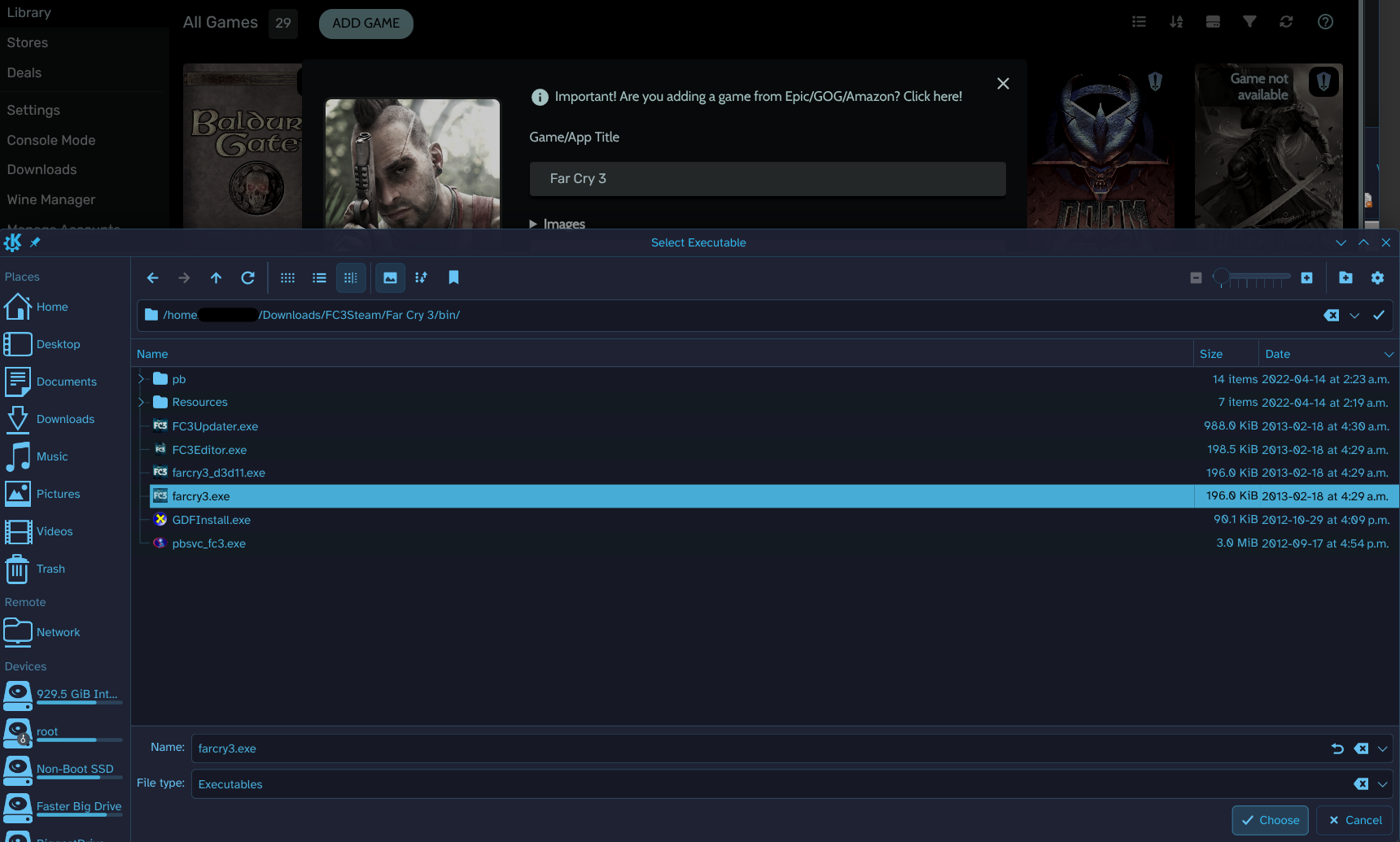
After adding a game, the first thing to try is always "Will this just launch on it's own?" because many of them actually do. In this case, however, we get as far as the first loading screen as the game boots and then it crashes to desktop before reaching the main menu.
Now we need to know why it crashed. By default, Heroic disables verbose logs for games. To correct this, right click on the game's art in your library and open the settings, then into the "Advanced" tab and check the box labelled "Enable verbose logs".
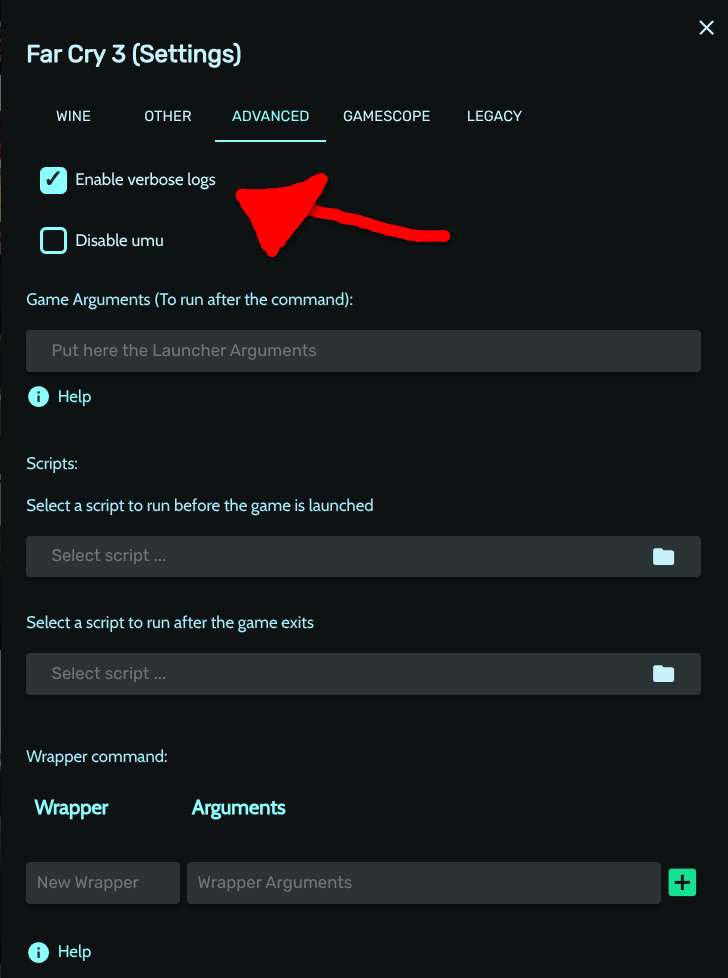
Now that the problems are going to be logged for us, launch the game and run it until it crashes again. Now we can browse some logs! To do this, right click on the game's portrait again and click "Logs". There's going to be quite a wall of text, but most of what we're seeing is not important to us. We only care about what was happening right before the thing crashed, so scroll down to the bottom.
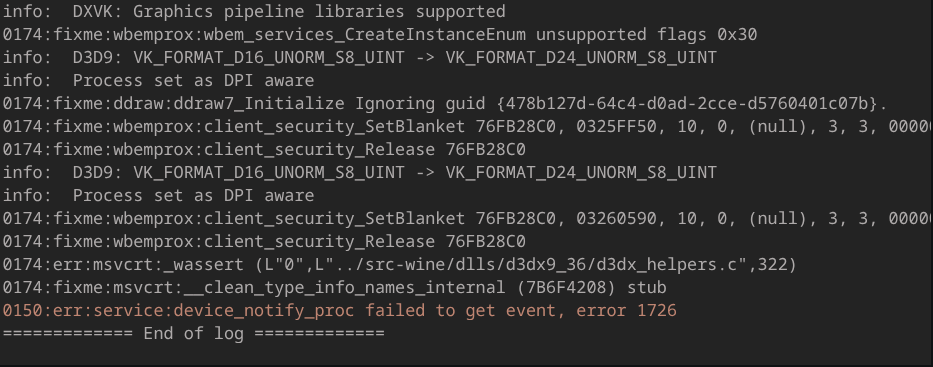
There are almost always going to be lots of warnings and "fixme"s in the error logs- these can almost always be ignored. The thing we care about is the errors, especially ones that caused the game to exit with an error.
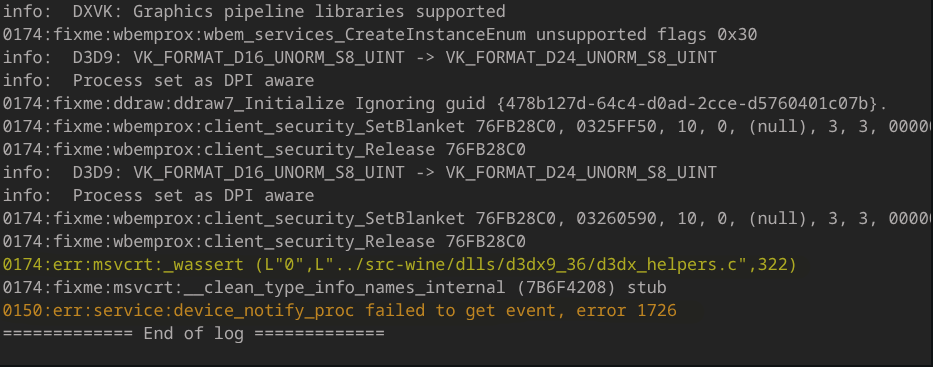
In this screenshot I've highlighted the errors that we care about in this case. We can see through these two errors that the cause for the failure is likely something to do with d3dx9. Now in order to remedy this, we can close the logs, right click our game's portrait one more time and navigate into the settings.
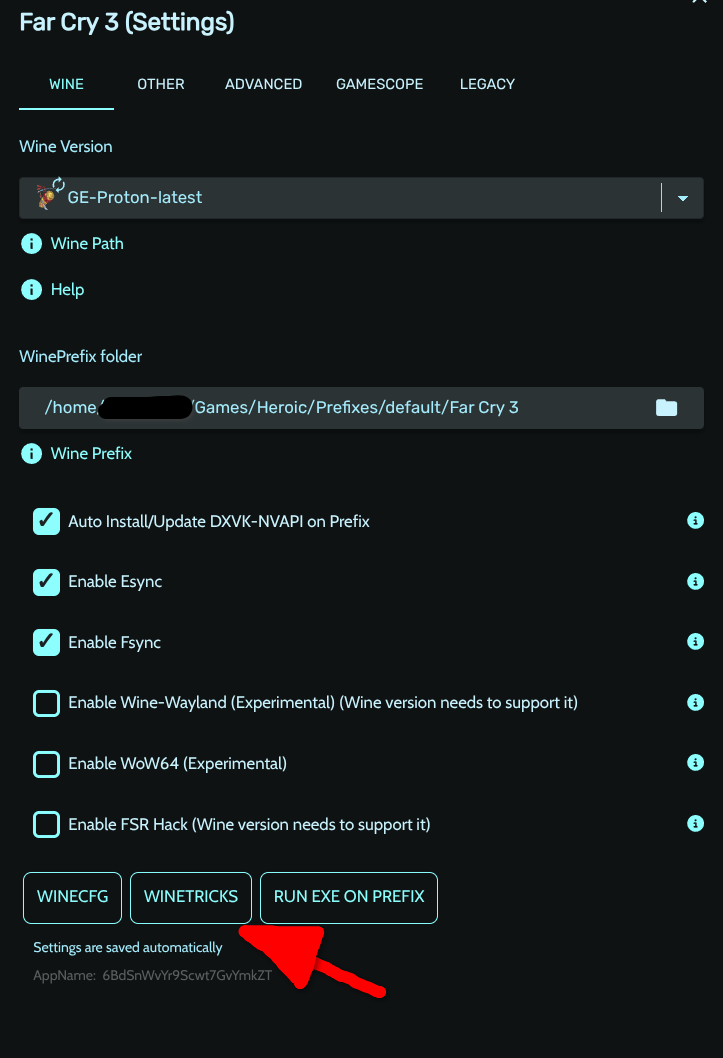
We want to go into the Wine settings and open Winetricks. Heroic has it's own sort-of-GUI frontend that it uses, but if you prefer the regular Winetricks interface there is still a button to open it by hitting "Open Winetricks GUI" next to the interface heroic uses.
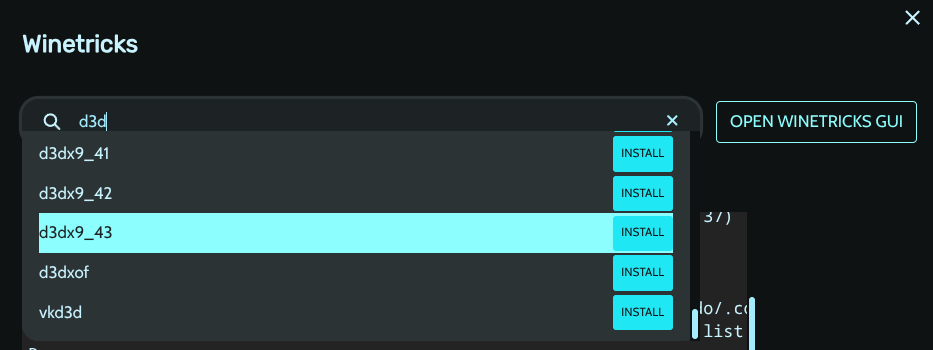
We need to make sure d3dx9 is installed into our proton prefix. You can see from the log screenshot earlier that the particular version of d3dx9 it was trying to access was d3dx9_36. For some packages it is necessary to use the exact version it is expecting or things will not work. In the case of d3dx9 however, you can generally go with the latest version and encounter no problems, as you can see in the screenshot I am installing d3dx9_43. After hitting "Install" the little console below the search bar will go nuts for a minute, and you'll likely see some warnings in there but this is normal.
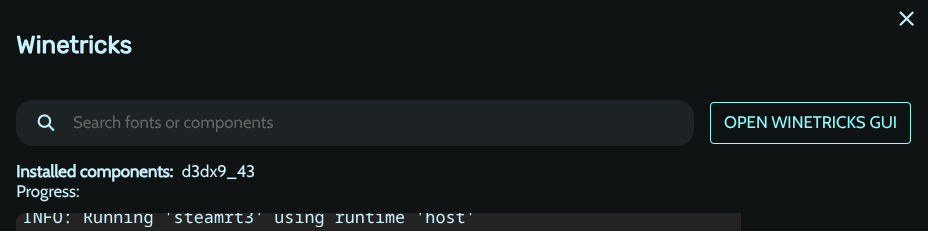
Once the install is finished, you should see the package appear under the search bar under "Installed components", like it is in the image above.
Now that we've installed the package causing the crash, let's boot the game and give it a shot!
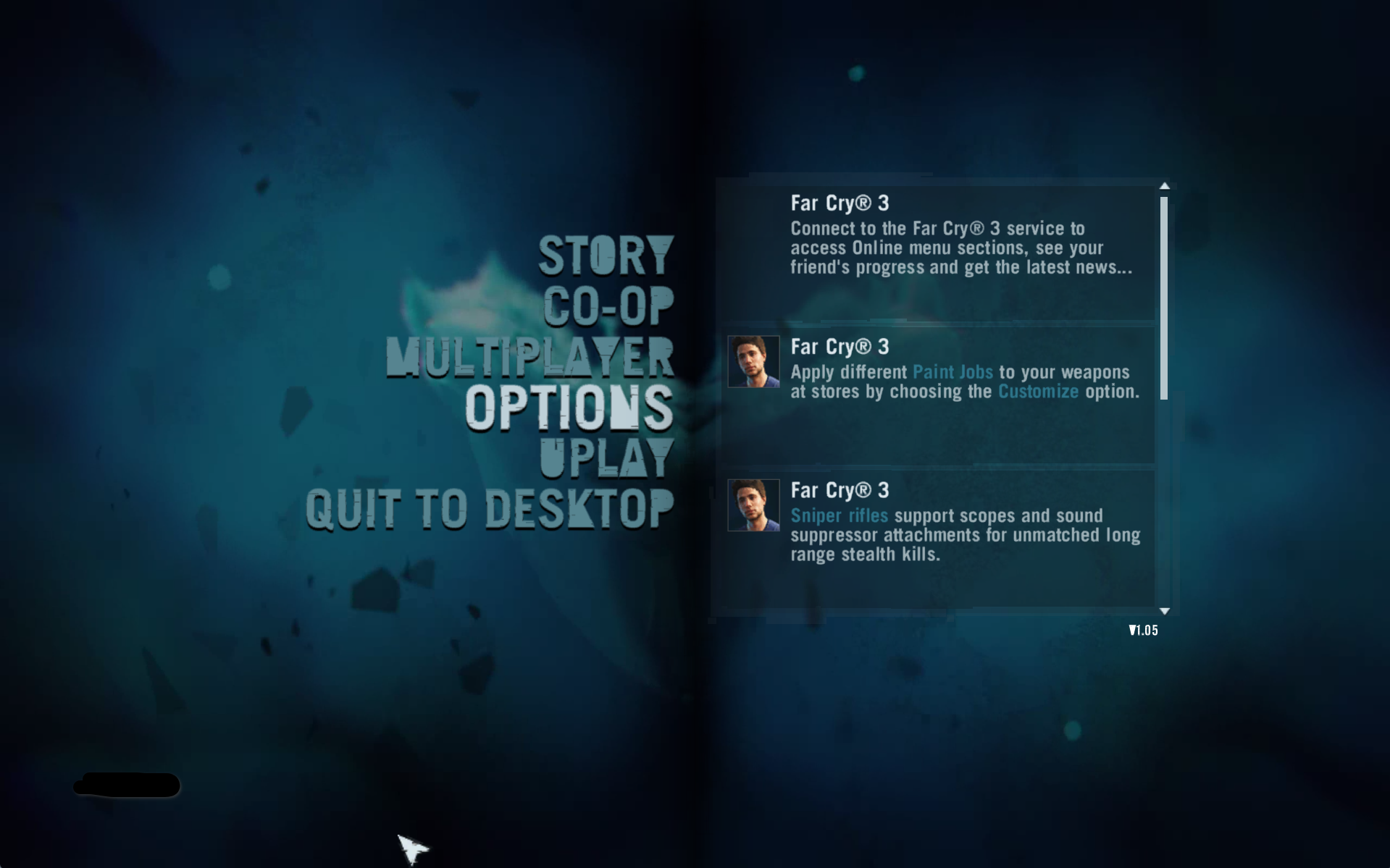
It works! Now, in some cases the game you're trying to launch has several dependencies missing. In cases like that, you may have the game crash again, but this time you will see a different error in the logs right before the crash. Rinse and repeat the process we just did, and after a couple loops it will launch! Typically even the toughest of them will only have 3-4 components missing, so as long as you get a different error with each package that you install keep going. If I'm able to find another more challenging game with more packages missing I'll update this guide so that it can be more useful to more people.
If you have questions, feel free to @ me in my signal support room here and I'll help as best I can. Good luck and have fun!