MusicBrainz and ListenBrainz - your best friends for music discovery
·
cenotaph's docs
A couple of open dataset tools to help you find new music
Like most people, I enjoy listening to music. I also really like discovering new music, so when music streaming services first came around I made heavy usage of finding new and interesting artists through recommendation algorithms. Unfortunately, like everything else venture capital touches, those services quickly began to enshittify. They moved from being a good deal for users to being a good deal for the record labels, and finally to being a good deal only for themselves. Algorithms were tweaked, bribes were paid, and now you are getting shown artists that have paid to be in your discovery feed as often or more often than you are getting actual organic recommendations.
What if you could have the dataset and recommendation algorithms without chaining yourself to Spotify, or Tidal, or whomever - because your data is with a community-maintained, open source dataset of both music information and listening habits? Good news, you can! I self host a music server for myself and my family through Jellyfin, and the thing I missed most after cutting my music streaming cords was the recommendations. The best answer I have found is ListenBrainz.
In this short guide, I'm going to show you how to quickly get set up and connected with MusicBrainz and ListenBrainz, some of the features of each, and how to get your music listening history from Jellyfin to automatically get sent to ListenBrainz for effortless recommendations and music discovery.
MusicBrainz and ListenBrainz
First, just to define things, there are two "pieces" of what is really the same core service we'll be talking about regularly:The first is MusicBrainz. If you're using Jellyfin for music, then you likely are already using this part, you just may not know it yet. MusicBrainz is an open music database/wiki that is one of the best free access sources of music metadata on the internet. It is one of the default metadata providers for Jellyfin for music and album art.
The second piece is ListenBrainz, a "sister service" built on top of the MusicBrainz database. This allows for connecting to various music services to track (or "scrobble" if you've been in the personal music tracking game a while) your music listens. Using this history, you're able to get music recommendations, discover playlists, find similar artists, as well as see users who have similar music tastes so you can find new artists through their listens.
ListenBrainz Setup
To use Listenbrainz, you're going to need a MusicBrainz account. Luckily, this is very easy. You can do so at either MusicBrainz or ListenBrainz, they have a unified account so each will work fine with the other. Once you've made your account, head to the homepage of ListenBrainz. If you're logged in, it should take you straight through to your dashboard. It's going to look something like this:
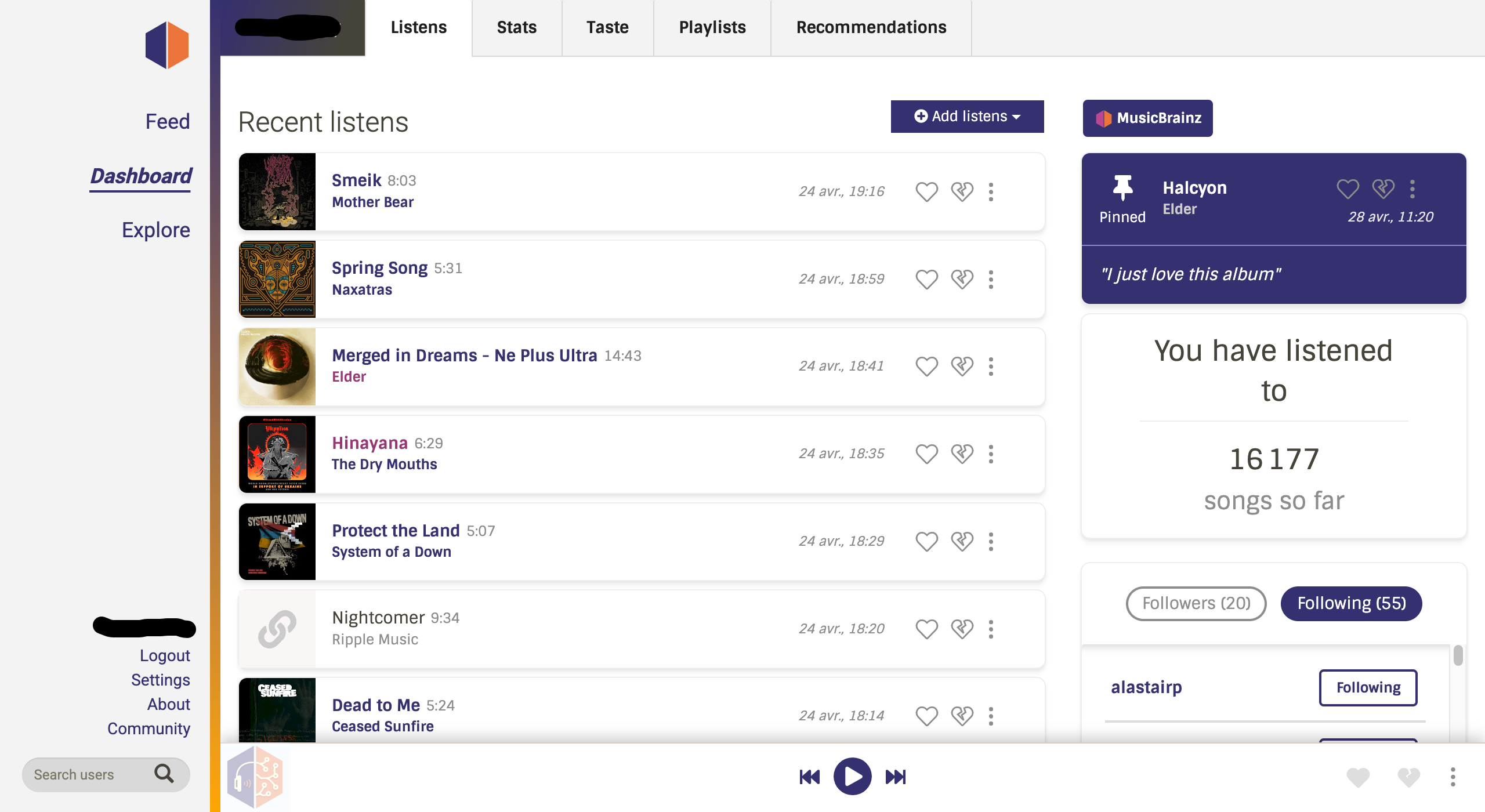
You can take a look around, but for the purposes of our setup the first place you'll want to go is the settings in the bottom left. Here, there are a few things we can do:
- First, your user token can be found right on the landing for the settings page. Take note of this and copy it down, as to submit to listenbrainz from Jellyfin we will need this token.
- Second, head to the "Connect Services" tab. From here, you can connect a bunch of different services to either import listens from, or to connect with so you can listen to recommendations or other people's listens directly in ListenBrainz for ease of use. You can even connect your Navidrome or Funkwhale servers! Cool stuff.
Connecting Jellyfin
To get your Jellyfin working seamlessly with your ListenBrainz, you'll need the ListenBrainz plugin. To install, just copy the "Stable" repo from the link provided and head to your Jellyfin admin dashboard, down to the plugins page.
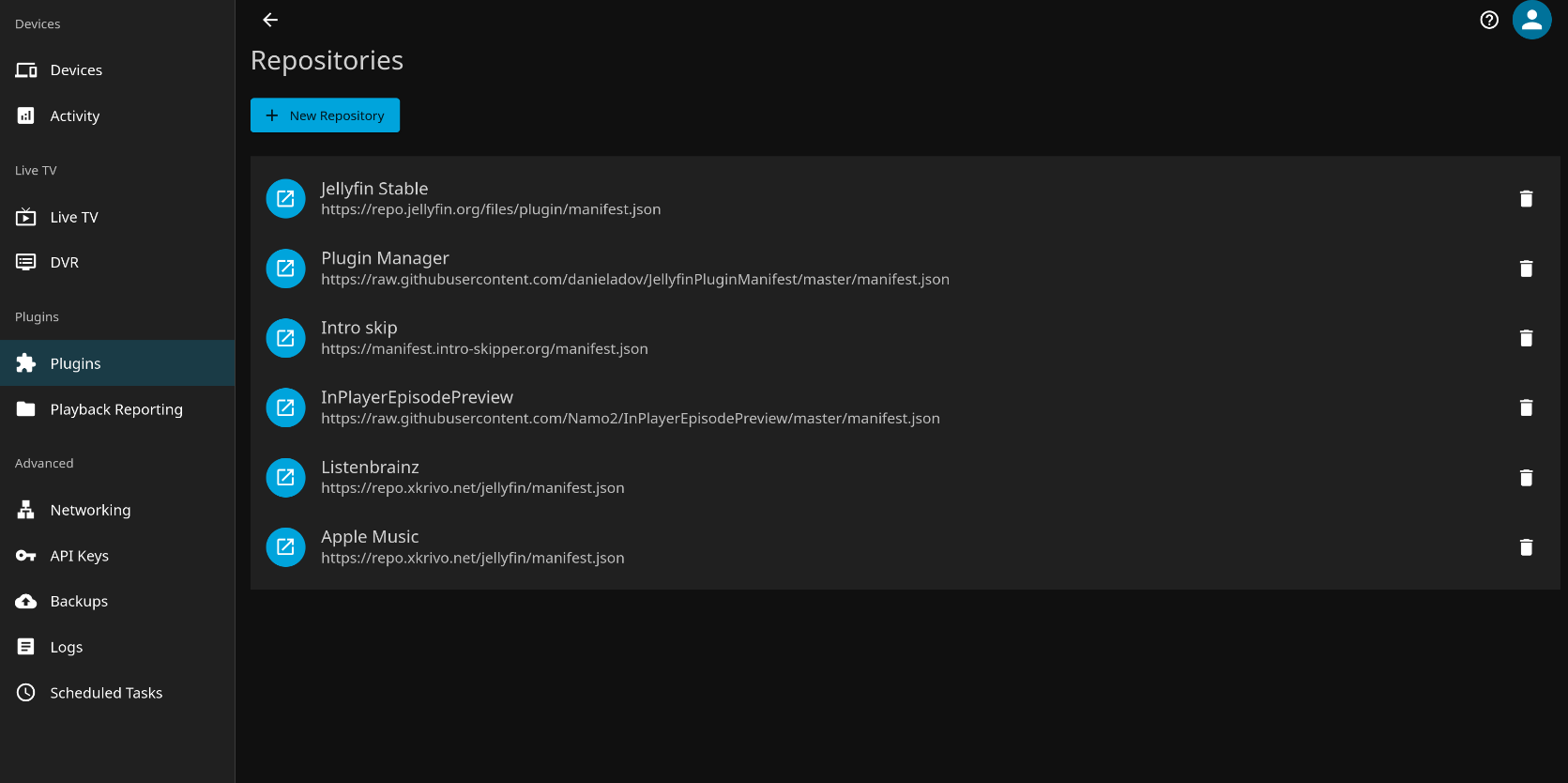
Just hit New Repository at the top, paste in the repo link we just copied, name it, and then hit save. Now, when we go back to plugins, show all and not just installed, and then select and install ListenBrainz. Once installed, go into the plugin settings, and you'll be presented with a bunch of options. A few things you want to do here to set up:
- Scroll to the General Config and select the libraries from which playback should be reported to ListenBrainz. I would make sure you have just your music library selected otherwise your listens are going to be full of garbage plays.
- I also like to have both "Fetch additional metadata from MusicBrainz" and "Immediate Favourite Sync"
- Under "User config", select the Jellyfin user that you want to be reporting listens to your ListenBrainz account. Here's where you want to paste the user token we took note of earlier. Hit the "Check" button to make sure the connection is working, and then check "Enable dubmitting listens" and "Enable syncing favourites".
Make sure you save settings for each of those things. Now, give a try at listening to something in the library (or libraries) that you have selected for playback reporting. On your ListenBrainz dashboard, you should begin to see a currently playing track, and once you finish a song it will show up in past listens. Congratulations, you're now scrobbling!
Cool ListenBrainz Features
Now that you've got your listens being sent to ListenBrainz, the actual "Guide" part is over. Regardless, I'd like to use the rest of this to show off some features of ListenBrainz that I think are useful for finding new music based on your tastes.
Music Exploration Playlist

Every week, ListenBrainz will create two playlists for you.
The first, Weekly Jams, will be a playlist made up of songs that you've been listening to lots of in the past week, grouped together in a playlist for you. This is nice if you just want something easy listening to put on and don't want to think about it.
The second is my favourite. It's called your Weekly Exploration playlist. This is a playlist put together by the recommendation algorithm for you. It's designed to be something you skip through, there will likely be some things you like and some things you don't. I've found it to be quite helpful for finding artists or albums that I might not have come across otherwise. Both of these types of playlists are available to save for later, and you can also look at your last week's playlist if it was a good one and you forgot to save it then.
Similar Users Viewing
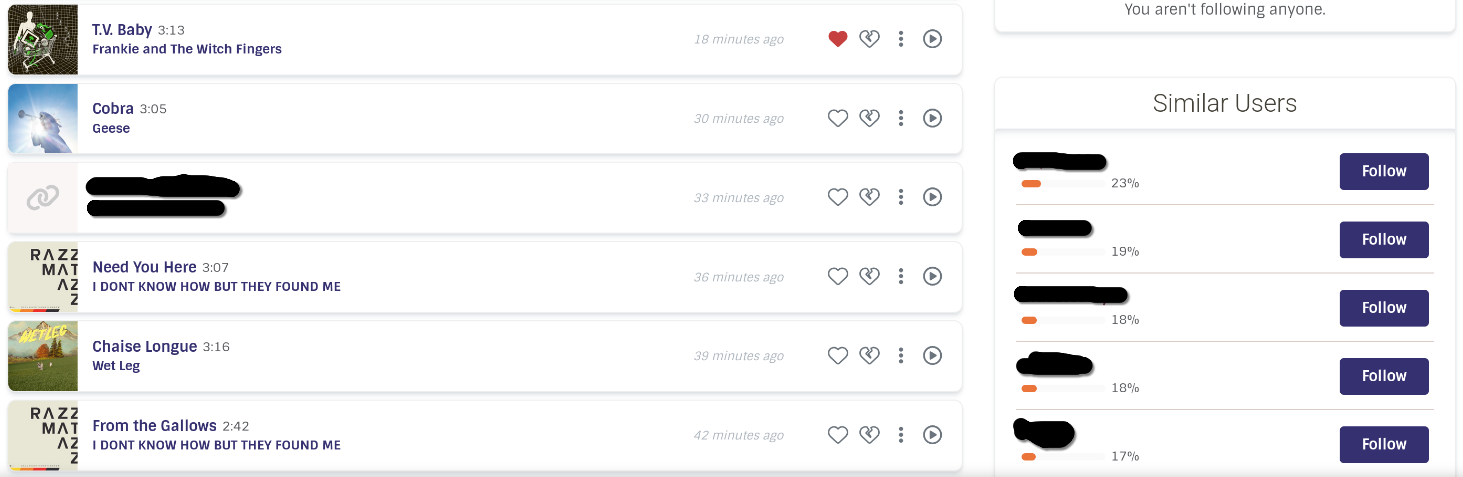
Navigating back to your ListenBrainz dashboard, you'll find next to your listen history (once you have listened to some music, at first some of these may not appear because you don't have enough listens tracked) there will be a list of "Similar Users". This lists the people on ListenBrainz with the most similar listening history to you, as well as what % of your listening histories are the same.
Depending on your tastes these may be higher or lower numbers, but I have found it extremely useful for finding new artists that I like. I take a look at someone who is in my similar users, go to their listening history and take a look. I find that often people listen to music of similar "vibes" at similar times. Even if I don't like some of the music in their history, I find an area in their listening history where they broadly are listening to music I like and take a listen to any of the songs or artists I don't recognize. If you have connected a streaming service to ListenBrainz, you can listen to the songs directly from the ListenBrainz web interface.
Music Neighbourhoods
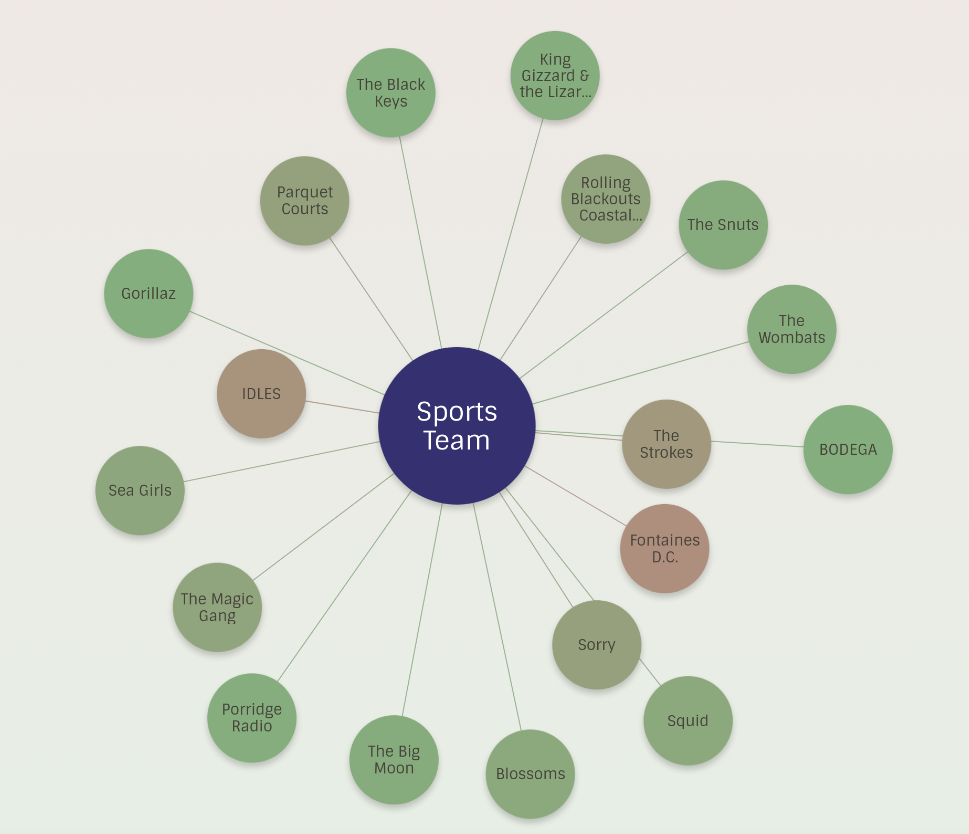
Music Neighbourhoods are another really great way to more actively look for new music. this can be found by hitting the "Explore" button on your ListenBrainz dashboard, and navigating to "Music Neighborhood".
With this feature, you write in any artist you like and give it a number of "proximate" artists you want to see. In the screenshot above, I have put in the band Sports Team from my previous blog post, and I've asked to see the default number of 18 neighbours. What you will get is the band you've entered in the center, and then a number of artists who have very similar tags to that artist. The more similar their tags, the closer to the center they will be. You can also click on any of the artists in the web to replace the center artist with the one you've clicked on. This is a great way to find new artists, and it's also a good way to look up an artist to see if it's worth you digging in and listening to the rest of their music or if the rest is going to be way not interesting.
Fresh Releases
While this one doesn't really necessitate a screenshot, it is still quite a helpful feature. Again found in your "Explore" page that you can navigate to from the ListenBrainz dashboard. Once you have some listens and likes imported or tracked on your account, this page will begin to populate with upcoming or recently released albums from artists that you listen to frequently. It helps to keep up to date and not miss new album releases.
That's all this time, folks. Any questions, feel free to say hi on Signal.