Heliboard + Google Swipe Lib + FUTO Voice input
·
cenotaph's docs
The best (mostly) open source keyboard solution I've found
There are a whole lot of different keyboard solutions on Android, and let's be honest: a lot of the offerings aren't great. While many of them have strengths, I initially struggled in my de-googling of my life to find a keyboard that had everything I wanted with regards to layout, swipe typing, and voice input. What follows is the best method I've been able to come up with (credit to the cowboy-hatted individual who clued in me into FUTO voice).
As of right now, do not install HeliBoard if you are on a Samsung device using OneUI- there are errors in how they interact that can make your phone fully lock up and be unusable without a full reset- see the link immediately below this heading for more details
Github Issue Report for Samsung OneUI
Installation
Heliboard
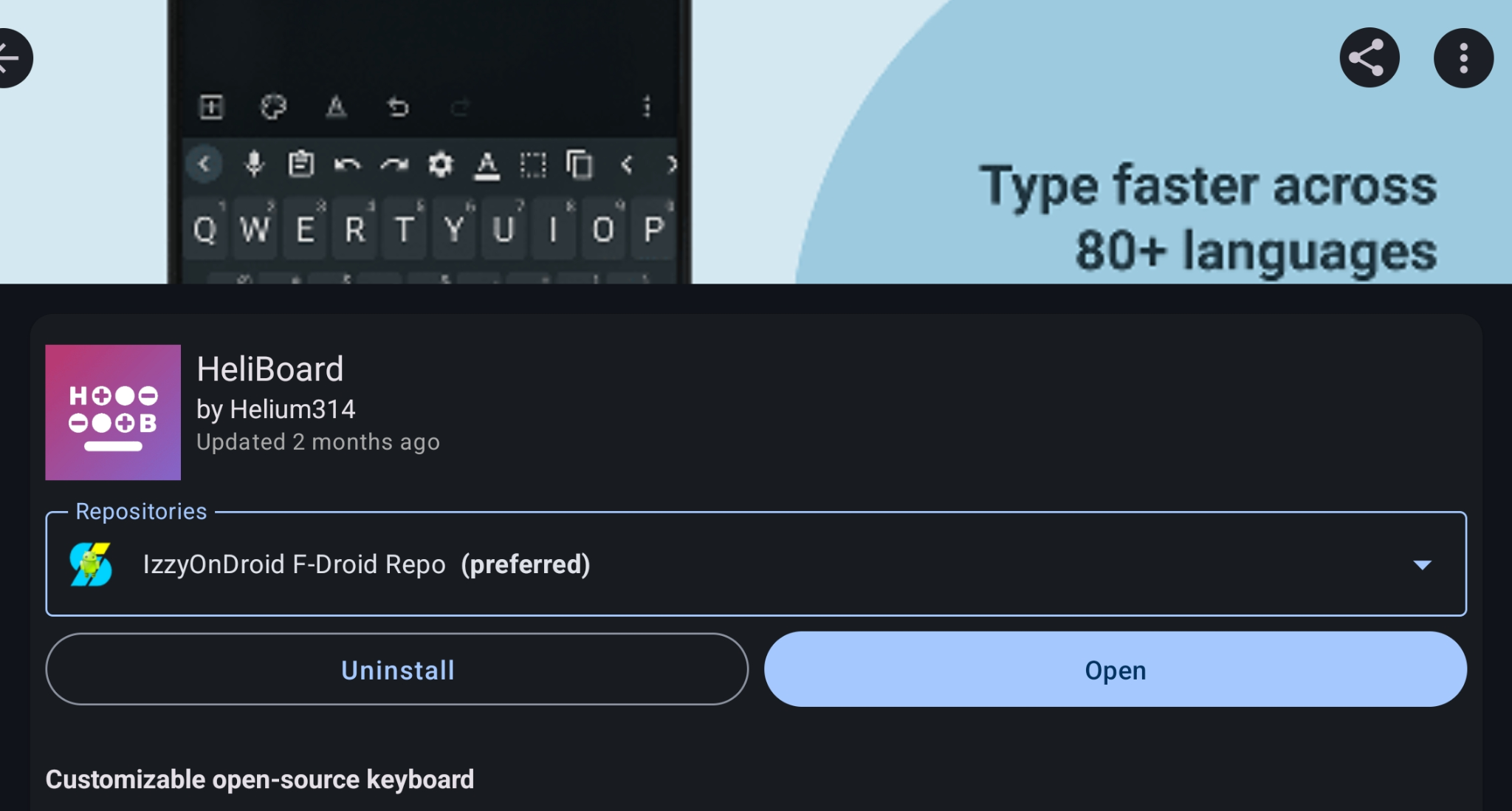
Our first step is to grab HeliBoard- this can be found on F-Droid, IzzyOnDroid, or through Obtainium on the dev team's GitHub repository.
FUTO Voice Input
One thing that the FUTO standalone keyboard has over many other offerings is the quality of it's speech to text input. Thankfully, the FUTO team is now offering this high-quality text to speech input as a standalone voice input that can be integrated into other apps you have. This can be downloaded from FUTO's F-Droid repository, through the Google Play Store, or as a standalone APK from FUTO's website.
Google Swipe Library
This part is the trickiest out of the three I suppose, mainly because it doesn't exist as a package you can just download. The way these swipe libraries are originally snagged from google is it used to be extractable from Gapps, though it is not any more so we are working with a slightly out of date version, though it is still head and shoulders above the rest of the swipe typing implementations out there.
The swipe library is available from the OpenBoard developers here. The only thing you need to know is if your device is using arm64v7 or arm64v8 for its CPU. This can be found out by looking up your phone's model on something like GeekBench or by downloading any of a number of CPU-monitoring tools for Android that will tell you the same. Once you have figured that out, drop into the appropriate folder in the linked GitHub above, and download libjni_latinimegoogle.so. If you don't feel like trusting me or the OpenBoard developers on the file's provenance, you can extract it yourself following the instructions here, but I won't be going through them because it isn't hard and if you're looking for FOSS keyboards you can probably figure it out.
Now we have all three pieces!
Configuration
While HeliBoard can initially be overwhelming with just how customizable it is, I recommend leaving the defaults and only changing specific settings that bother you as you use the keyboard. I find many people who get too gung-ho initially end up customizing it into a keyboard they don't actually enjoy using.
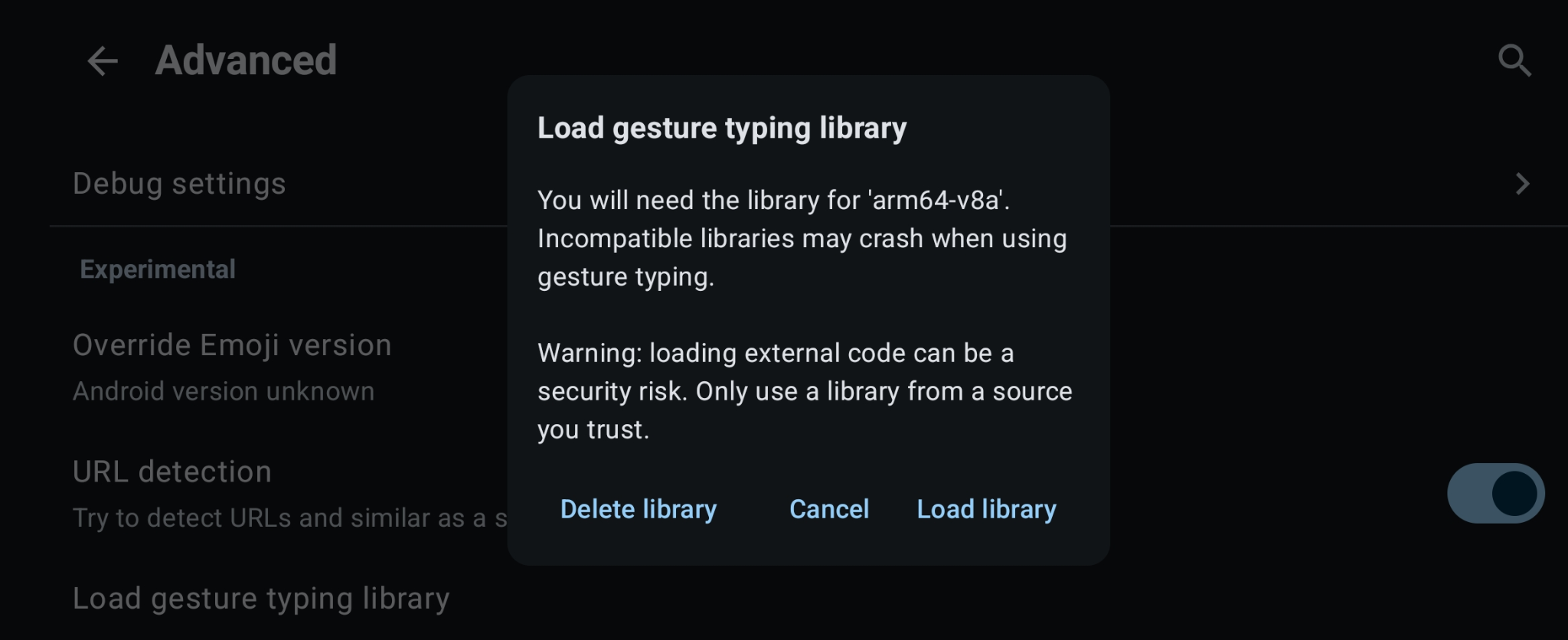
We start by opening the HeliBoard settings app (called HeliBoard in your launcher), navigate to "Advanced" on the bottom of the settings list, and then down to the very bottom of the advanced settings where you'll see "Load gesture typing library". Tap that, navigate to where you downloaded or extracted libjni_latinimegoogle.so to, and it'll load the library into HeliBoard. Now we can back out from the "Advanced" menu and head into "Gesture Typing". Now that we have the library loaded, you should be able to enable gesture typing and configure it to how you like your swipe typing to work.
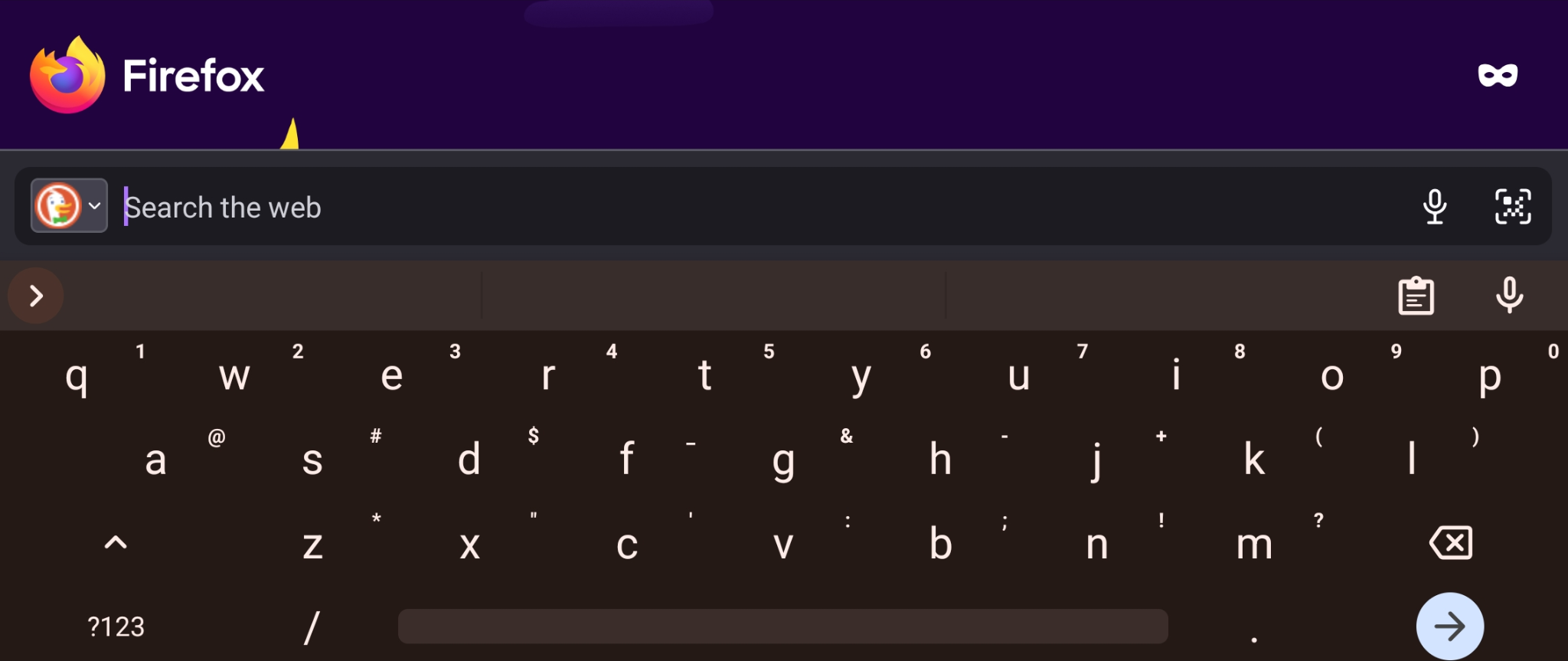
Next up, launch FUTO voice input. This should ask you for permissions (specifically enabling it as an onscreen keyboard in your settings). If it does not prompt you for the input, you can manually enable it from Settings -> System -> Keyboard -> On Screen Keyboard (at least on GrapheneOS). If you have it, make sure that "Google Voice Typing" is also disabled on this menu. Now that it is enabled, head back over to a random place you can enter text, and you should now have in your toolbar a little microphone (if not visible immediately hit the arrow on the top left of the keyboard to show the toolbar icons). If you can't see it, head back into your HeliBoard settings and make sure under "Toolbar" that "Voice Input" is checked as an option. Additionally, after enabling properly, FUTO Voice Input should take over anywhere you would normally have an option to use voice input in various apps (for example, the mic in my address bar on IronFox here).
Aaand that's all she wrote. This one was a quick one so have fun trying it out!